---
title: Why am I seeing the Forgot Password page after I've signed in?
description: You signed in with your existing email and password, and the next screen asked you to reset your password through the Forgot password flow. This is expected. Here is why and what to do.
---
[Skip to content](https://knowledge.screenrights.org/en/authentication/why-am-i-seeing-the-forgot-password-page-after-i-signed-in#main-content)
English
Show submenu for translations
![sr-logo.png\]](https://knowledge.screenrights.org/hs-fs/hubfs/sr-logo.png?height=40&name=sr-logo.png)
Open main navigation
Close main navigation
- English
Show submenu for translations
-
How can we help you?
- There are no suggestions because the search field is empty.
1. [Screenrights](https://knowledge.screenrights.org/en?hsLang=en)
2. [Security & Privacy](https://knowledge.screenrights.org/en/security-privacy?hsLang=en)
3. [Multi-Factor Authentication](https://knowledge.screenrights.org/en/security-privacy?hsLang=en#multi-factor-authentication)
# Why am I seeing the Forgot Password page after I've signed in?
Our new sign-in system has strict password requirements to keep your account secure. If your existing password does not meet these requirements, you will be asked to reset it before you can continue.
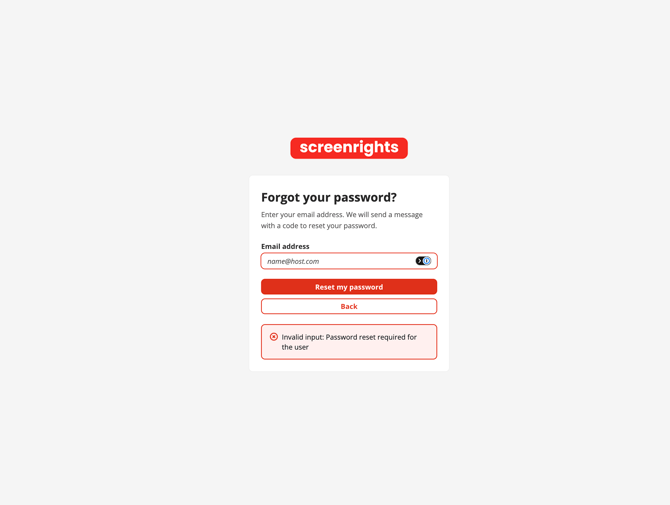
You will sign in to our platforms using your existing email and password. If your password doesn't meet the new password requirements, the next screen will ask you to enter your email address to reset it. The page will say "Forgot Your Password?" This is expected..
Please follow these steps to reset your password and secure your account:
1. If you are prompted to reset your password from the Forgot Password screen, enter your email address and click "Reset my Password"
2. Enter the 6-digit code sent to your email address on the Reset Password screen.
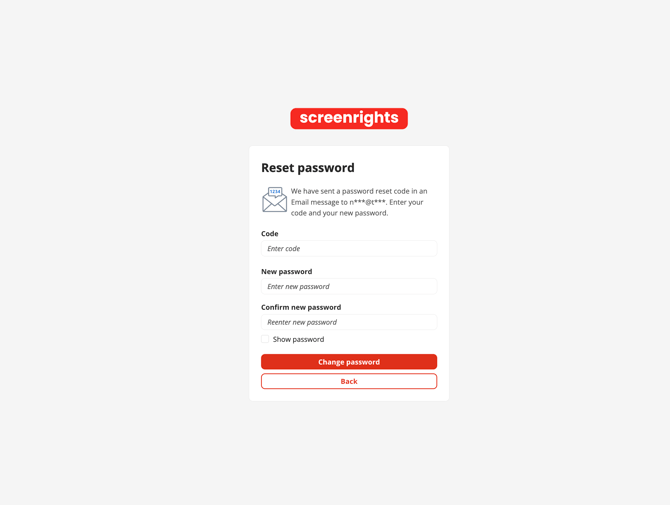
3. Choose a new password that meets these requirements:
- At least 8 characters long.
- At least one uppercase letter (A to Z).
- At least one lowercase letter (a to z).
- At least one number (0 to 9).
- At least one special character (for example: `! @ # $ % & ?`).
4. Confirm the new password.
5. Sign in again with your email address and new password.
You will only have to follow these steps once. After you have set a new password that meets these requirements, future sign-ins will be more straightforward.
🔧 **Troubleshooting Tips:**
#### **I did not receive the verification code**
- Check your spam or junk folder.
- Confirm you are using the email address registered to your Screenrights account.
- Wait a few minutes and try again.
- If the code still does not arrive, contact support.
#### **I cannot access the email address on my account**
[Contact support](https://knowledge.screenrights.org/en/contact-support?hsLang=en). We need to verify your identity before changing any account security settings.
#### **I keep being sent back to the Forgot password screen**
Your new password must meet every rule listed above. Pick a password that includes all five rules and try again.
- [Get Started](https://knowledge.screenrights.org/en/get-started?hsLang=en)
- [Security & Privacy](https://knowledge.screenrights.org/en/security-privacy?hsLang=en#main-content)
- [Multi-Factor Authentication](https://knowledge.screenrights.org/en/security-privacy?hsLang=en#multi-factor-authentication)
- [MyScreenrights](https://knowledge.screenrights.org/en/myscreenrights?hsLang=en)
- [Homepage](https://knowledge.screenrights.org/en/homepage?hsLang=en#main-content)
- [Frequently Asked Questions](https://knowledge.screenrights.org/en/homepage?hsLang=en#frequently-asked-questions)
- [Titles](https://knowledge.screenrights.org/en/titles?hsLang=en)
- [Clients (For Agencies Only)](https://knowledge.screenrights.org/en/clients-for-agencies-only?hsLang=en#main-content)
- [Frequently Asked Questions](https://knowledge.screenrights.org/en/clients-for-agencies-only?hsLang=en#frequently-asked-questions)
- [Earnings Statements](https://knowledge.screenrights.org/en/earnings-statements?hsLang=en#main-content)
- [Residuals](https://knowledge.screenrights.org/en/earnings-statements?hsLang=en#residuals)
- [Frequently Asked Questions](https://knowledge.screenrights.org/en/earnings-statements?hsLang=en#frequently-asked-questions)
- [My Tasks](https://knowledge.screenrights.org/en/my-tasks?hsLang=en#main-content)
- [Potential Claims](https://knowledge.screenrights.org/en/my-tasks?hsLang=en#potential-claims)
- [Competing Claims](https://knowledge.screenrights.org/en/my-tasks?hsLang=en#competing-claims)
- [Frequently Asked Questions](https://knowledge.screenrights.org/en/my-tasks?hsLang=en#frequently-asked-questions)
- [Collection Account Management](https://knowledge.screenrights.org/en/collection-account-management?hsLang=en)
- [Workspace Settings](https://knowledge.screenrights.org/en/workspace-settings?hsLang=en#main-content)
- [Frequently Asked Questions](https://knowledge.screenrights.org/en/workspace-settings?hsLang=en#frequently-asked-questions)
- [Teammates](https://knowledge.screenrights.org/en/teammates?hsLang=en#main-content)
- [Frequently Asked Questions](https://knowledge.screenrights.org/en/teammates?hsLang=en#frequently-asked-questions)
- [Bank Details](https://knowledge.screenrights.org/en/bank-details?hsLang=en)
- [General Questions](https://knowledge.screenrights.org/en/general-questions?hsLang=en)
- [Contact Us](https://knowledge.screenrights.org/en/contact-us?hsLang=en)
# Screenrights
www.screenrights.org | Image: Luke Nguyen's Food Trail, Red Creative Media
Copyright © 2026, Screenrights