![sr-logo.png]](https://knowledge.screenrights.org/hs-fs/hubfs/sr-logo.png?height=40&name=sr-logo.png)
Authenticator App
Use your phone's app store (Apple Store or Google Play Store) to download an Authenticator App. Some common examples are Google Authenticator, Microsoft Authenticator, 1Password, and Authy.
1. Sign in to Screenrights using your email and password.
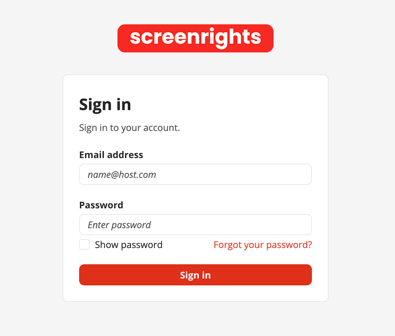
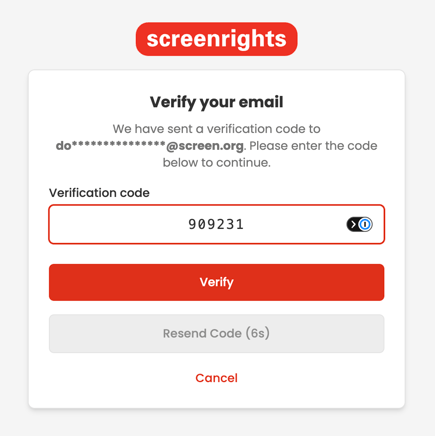
2. Enter the code sent to your email address.
3. You will be prompted to scan the QR code (see image below) using your preferred authenticator app.
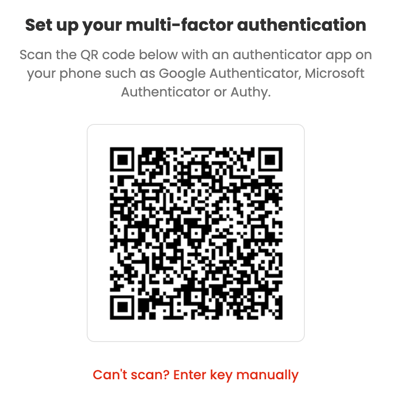
To do this:
-
- Open your chosen authenticator app on your mobile phone. You'll find the app either on the home screen or by performing a search on your device.
- Within the authenticator app, choose the option to add a new account. This is usually done by tapping on a plus (+) symbol, although each app may be slightly different.
- The authenticator app will open your camera to allow you to scan the QR code.
4. Your chosen authenticator app will provide you with a 6-digit code. Enter that code on the multi-factor authentication setup page.
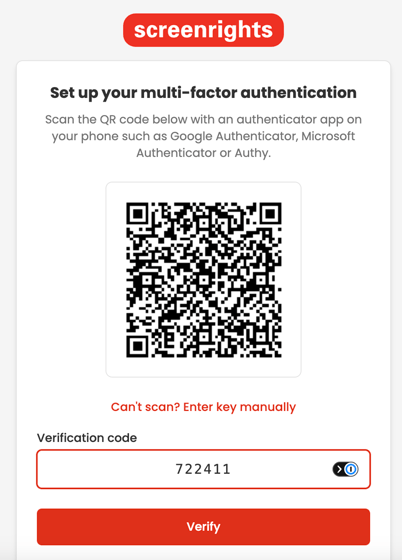
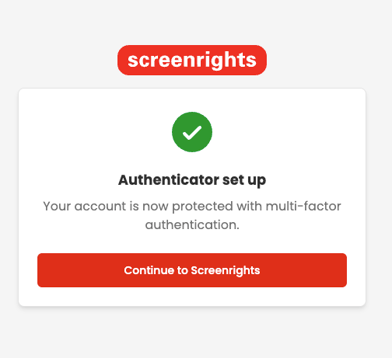
5. Click Verify to continue.
🔧 Troubleshooting Tip: If the code does not work, wait for the next code to appear in your authenticator app and try again. Authenticator codes refresh about every 30 seconds.
SMS
Use this option if you are setting up multi-factor authentication via SMS.
-
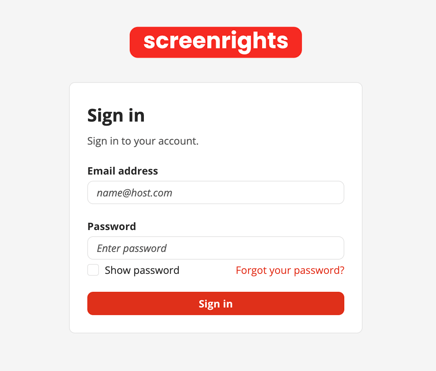
Sign in to Screenrights using your email and password.
-
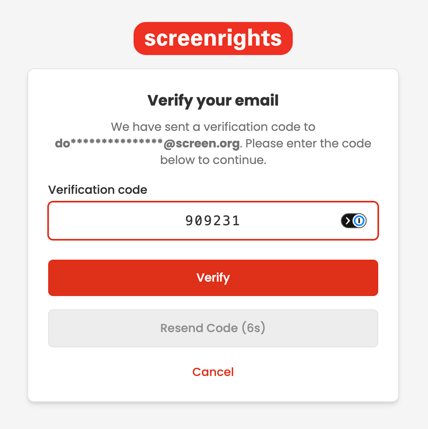
Enter the code sent to your email address.
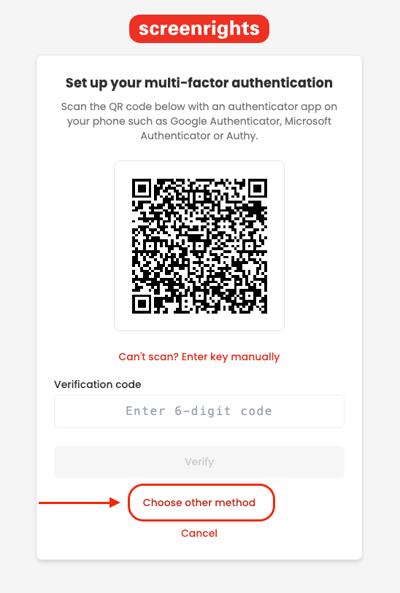
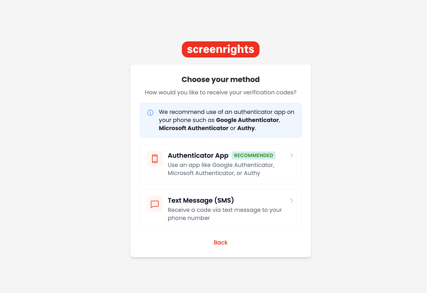
- On the Multi-Factor Authentication Setup screen, click Choose other Method instead of scanning the QR code.
- Select Text Message (SMS) as your authentication method.
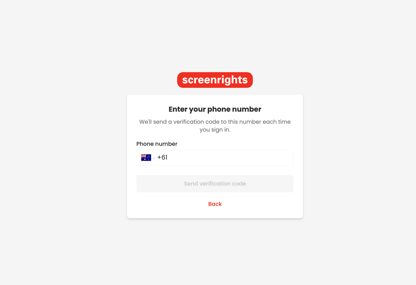
- Select the appropriate country code and enter your phone number. Note that this number will be used for all future logins, so please ensure you have access to this number when you wish to log in to the app.
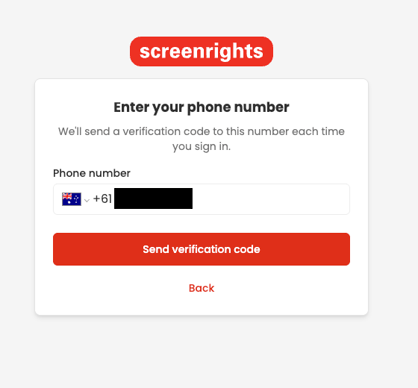
- Check that your phone number is correct, and click Send verification code to request the SMS code.
- Enter the code sent via SMS.
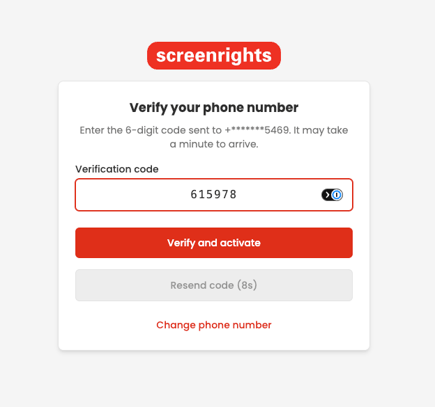
- Click Verify and Activate to continue.
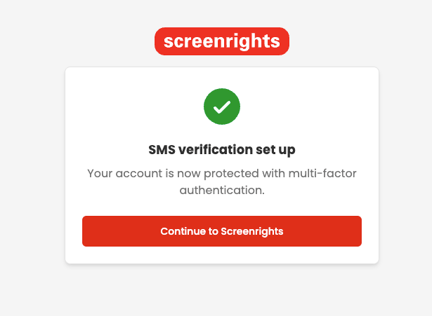
🔧 Troubleshooting Tip: If you don't receive the SMS, wait a moment before trying again. Mobile delivery can sometimes be delayed by your carrier.
Returning Login
After your first setup is complete, future logins will be simpler.
- Go to the Screenrights app you normally use.
- Enter your email address and password.
- Enter the code from either your chosen authenticator app or SMS, depending on which option you used to set up MFA.
- Continue into the app.
🔧 Troubleshooting Tip: Visit https://screenrights.app/auth/mfa-reset if you need to reset your MFA.