---
title: Logging In After the Screenrights Security Upgrade
description: "Troubleshoot Screenrights login after the security upgrade: email codes, MFA re-setup, MFA reset link, passwords, SMS codes, contacting support."
---
[Skip to content](https://knowledge.screenrights.org/en/authentication/logging-in-after-the-screenrights-security-upgrade-0#main-content)
English
Show submenu for translations
![sr-logo.png\]](https://knowledge.screenrights.org/hs-fs/hubfs/sr-logo.png?height=40&name=sr-logo.png)
Open main navigation
Close main navigation
- English
Show submenu for translations
-
How can we help you?
- There are no suggestions because the search field is empty.
1. [Screenrights](https://knowledge.screenrights.org/en?hsLang=en)
2. [Security & Privacy](https://knowledge.screenrights.org/en/security-privacy?hsLang=en)
3. [Multi-Factor Authentication](https://knowledge.screenrights.org/en/security-privacy?hsLang=en#multi-factor-authentication)
# Logging In After the Screenrights Security Upgrade
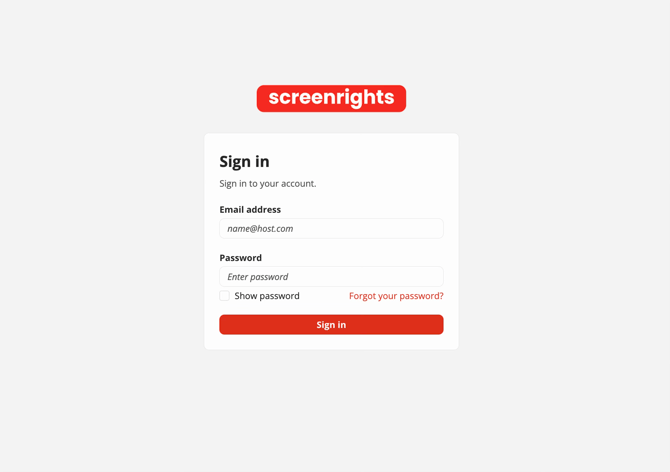
## We have upgraded the way you sign in to Screenrights to enhance your security across our platforms. The login page may look a little different, but your account, titles, claims, and all other saved information remains unchanged.
1. Go to the **Screenrights App** you normally use.
2. Enter your registered email address and password. If you're unsure of the email address, search your inbox and look for emails you've received from Screenrights.
3. You may be required to set a new password for extra security. If so, you'll see the **Forgot your Password** page, Enter your email address to reset your password. If you don't see this screen, **skip to step 6**.
4. Enter the 6-digit code sent to your email, then set a new password that adheres to our new password security requirements.
5. Enter your email and new password to sign in.
6. Follow instructions to set up Multi-Factor Authentication (MFA) [here](https://knowledge.screenrights.org/en/authentication/setting-up-multi-factor-authentication?hsLang=en). We support two MFA methods. You can choose to authenticate using an Authenticator App (recommended) or via SMS.
7. Once the setup is complete, you will be taken to the Screenrights App.
This is a one-time setup. It usually only takes a few minutes.
- [Get Started](https://knowledge.screenrights.org/en/get-started?hsLang=en)
- [Security & Privacy](https://knowledge.screenrights.org/en/security-privacy?hsLang=en#main-content)
- [Multi-Factor Authentication](https://knowledge.screenrights.org/en/security-privacy?hsLang=en#multi-factor-authentication)
- [MyScreenrights](https://knowledge.screenrights.org/en/myscreenrights?hsLang=en)
- [Homepage](https://knowledge.screenrights.org/en/homepage?hsLang=en#main-content)
- [Frequently Asked Questions](https://knowledge.screenrights.org/en/homepage?hsLang=en#frequently-asked-questions)
- [Titles](https://knowledge.screenrights.org/en/titles?hsLang=en)
- [Clients (For Agencies Only)](https://knowledge.screenrights.org/en/clients-for-agencies-only?hsLang=en#main-content)
- [Frequently Asked Questions](https://knowledge.screenrights.org/en/clients-for-agencies-only?hsLang=en#frequently-asked-questions)
- [Earnings Statements](https://knowledge.screenrights.org/en/earnings-statements?hsLang=en#main-content)
- [Residuals](https://knowledge.screenrights.org/en/earnings-statements?hsLang=en#residuals)
- [Frequently Asked Questions](https://knowledge.screenrights.org/en/earnings-statements?hsLang=en#frequently-asked-questions)
- [My Tasks](https://knowledge.screenrights.org/en/my-tasks?hsLang=en#main-content)
- [Potential Claims](https://knowledge.screenrights.org/en/my-tasks?hsLang=en#potential-claims)
- [Competing Claims](https://knowledge.screenrights.org/en/my-tasks?hsLang=en#competing-claims)
- [Frequently Asked Questions](https://knowledge.screenrights.org/en/my-tasks?hsLang=en#frequently-asked-questions)
- [Collection Account Management](https://knowledge.screenrights.org/en/collection-account-management?hsLang=en)
- [Workspace Settings](https://knowledge.screenrights.org/en/workspace-settings?hsLang=en#main-content)
- [Frequently Asked Questions](https://knowledge.screenrights.org/en/workspace-settings?hsLang=en#frequently-asked-questions)
- [Teammates](https://knowledge.screenrights.org/en/teammates?hsLang=en#main-content)
- [Frequently Asked Questions](https://knowledge.screenrights.org/en/teammates?hsLang=en#frequently-asked-questions)
- [Bank Details](https://knowledge.screenrights.org/en/bank-details?hsLang=en)
- [General Questions](https://knowledge.screenrights.org/en/general-questions?hsLang=en)
- [Contact Us](https://knowledge.screenrights.org/en/contact-us?hsLang=en)
# Screenrights
www.screenrights.org | Image: Luke Nguyen's Food Trail, Red Creative Media
Copyright © 2026, Screenrights